
Help center Plan your money
What-if plans and plan history
Try a raise, a move or a new car payment on a copy of your plan, compare it and use it when you’re ready.
A what-if is a copy of your plan where you can try a change without touching the real one. Use it to ask “can we afford it?” before you decide.
Start a what-if plan
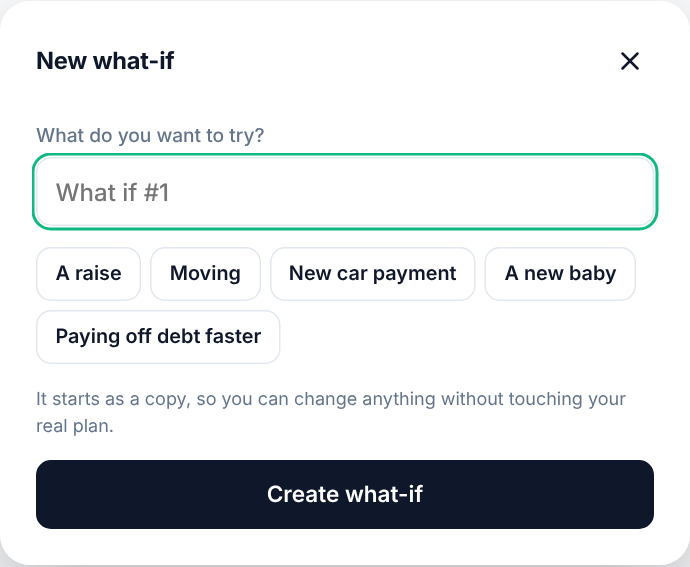
- Open What-if and choose Start a what-if.
- Give it a name, or tap an idea like A raise or Moving. An idea starts with a first change made (5% more pay for a raise, rent 10% higher for a move) that you then set to your own numbers.
- If you already have what-ifs, choose what to start from: your current plan, or a copy of another what-if.
- Choose Create what-if.
Try your changes
Change any income, category or savings goal amount, or add new ones. Compared with your plan shows the difference each month: income, spending, savings and what’s left to assign.
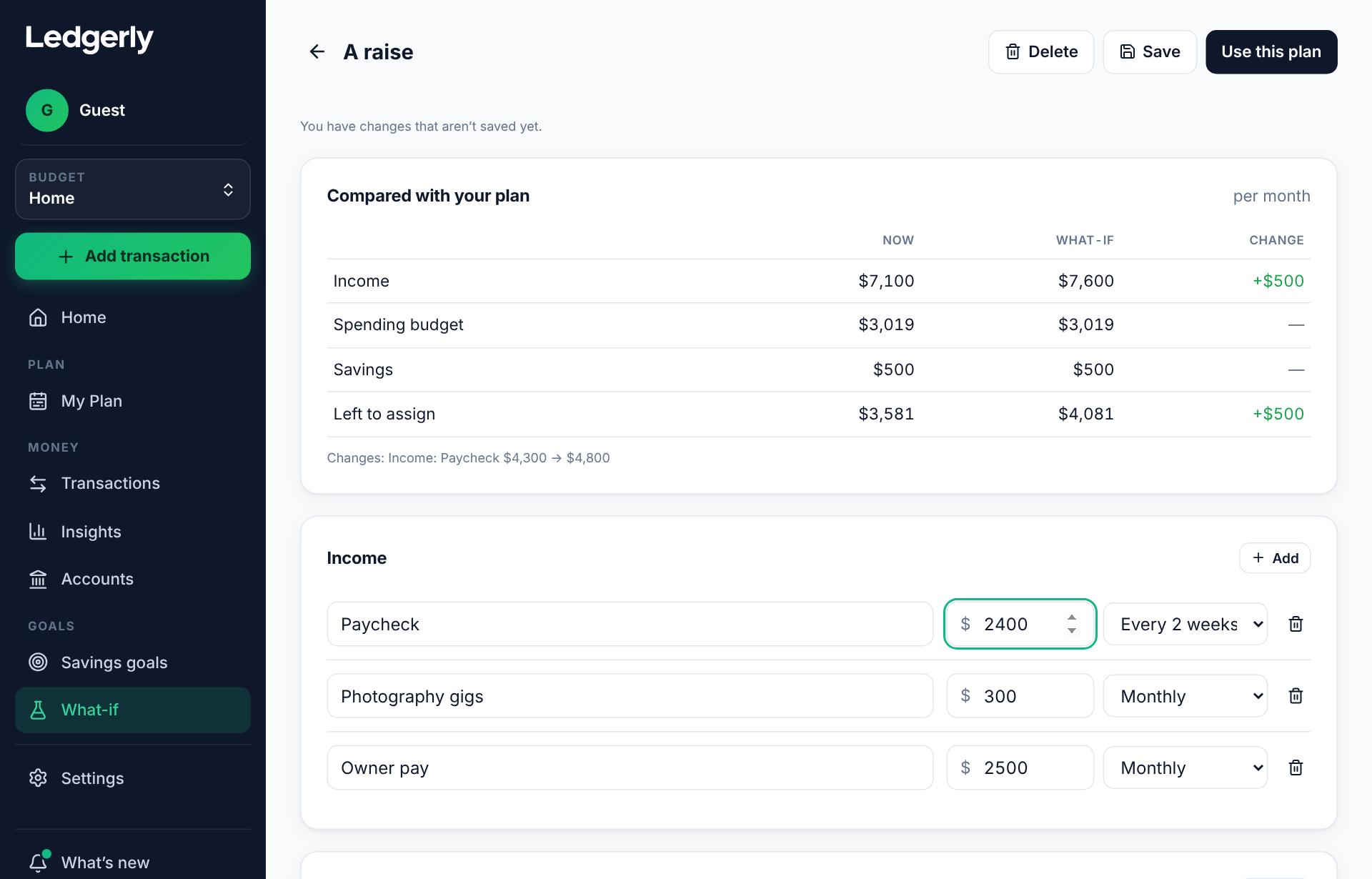
Choose Save to keep your what-if for later. You can keep several and come back to any of them.
Use a what-if plan as your plan
When you’ve decided, choose Use this plan, then Replace my plan. Your what-if becomes your real plan.
Plan history
Plan history on the What-if page lists the plans that were replaced, newest first. Pick one, choose Restore, then Restore plan to go back to it. The plan you had is saved to history too, so you can always switch back.