Help center Get started
Your Home screen
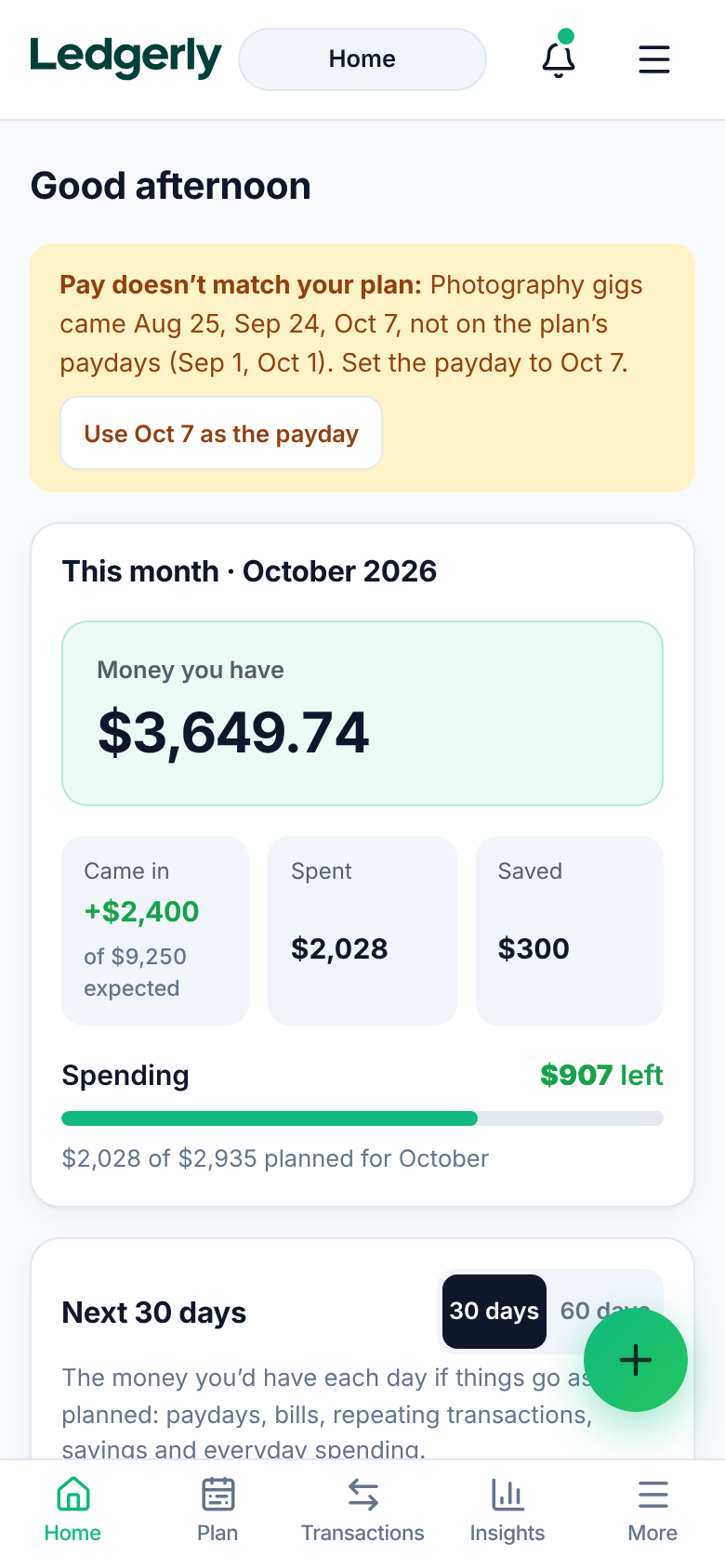
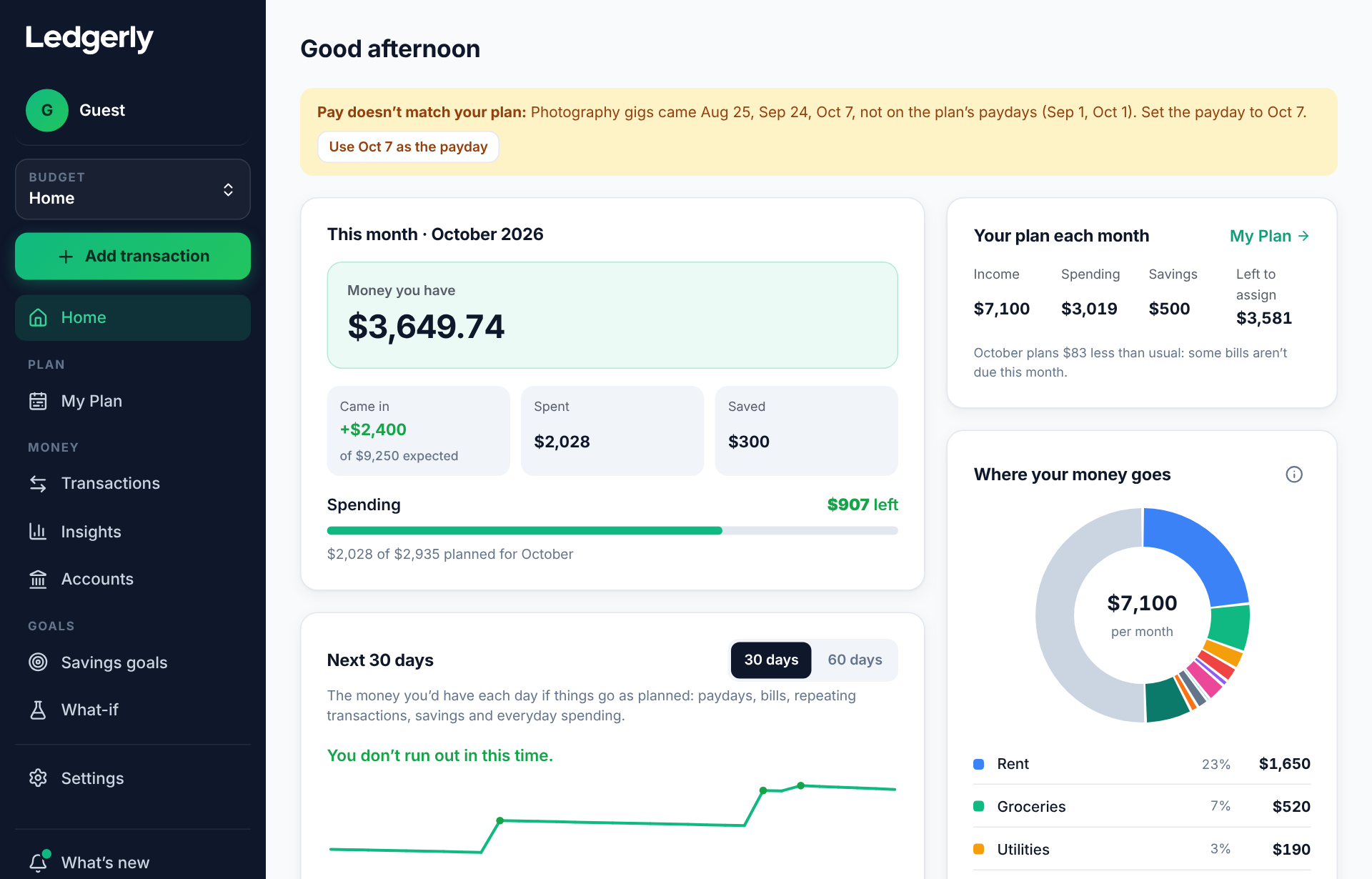
What each part of Home shows: the money you have, this month’s spending, each category, recent transactions and the next 30 days.
Home answers one question: how is this month going? Everything on it comes from your plan (in My Plan) and what you’ve logged (in Transactions).
On a wide screen, Home has two columns: this month, your categories and savings on the left; recent transactions, the next 30 days and the rest on the right. On a phone it’s one column, with what you check every day first: this month, your categories, then recent transactions. Your plan’s monthly numbers and how your income is split are in My Plan.
To confirm, and nudges
Repeating transactions that came due (rent, a phone bill, a paycheck) wait at the top of Home under To confirm: press Confirm to log one (change the amount first if it was different), Skip if it didn’t happen, or Confirm all.
When nothing has been logged for a week, Home asks if there’s anything to add, with Add what you spent and Import a statement. Later puts it off for 3 days.
This month
- Money you have is the money that came in, minus what you spent and moved to savings. Log your paychecks when you’re paid and it stays true to your bank balance’s story.
- Came in, Spent and Saved show this month’s totals so far.
- Until you’ve logged any money in this month, the card shows what you’ve spent this month instead, with a Log money in button.
- Spending shows what you’ve spent of what you planned to spend this month, and how much is left.
Next 30 days
Once you’ve logged some pay, Home shows the money you’d have each day for the next 30 days (or 60), with the next few paydays and bills and Show all for the rest: it starts from the money you have in all your accounts (checking, savings and cash, including a bank you linked) and follows your plan, with paychecks on their paydays, bills on their due days, repeating transactions and everyday spending spread over each day (money moved to savings stays in your accounts, so it doesn’t lower the line). The line turns red where it would drop below the amount you want to keep, and Ledgerly says when, like “You’ll be $120 short before your Nov 13 paycheck.” If you’re paid weekly or every 2 weeks and haven’t added a recent payday (or logged a paycheck), it asks for one instead, because it can’t place your paychecks without it. A bill without a due day isn’t counted for the rest of this month once the 1st has passed (Ledgerly can’t tell whether you paid it before you started); add a due day in My Plan to see it on the right day.
Set the cushion you like to keep in Settings → Preferences → Warn me if I’d have less than ($0 means warn before running out). It’s your plan, not a promise: log what really happens and it updates.
When an everyday category is spending well ahead of the month (say 70% spent with 40% of the month gone), Home tells you, with about how much a day keeps it on plan.
Leftover money
When a category spends less than planned, the rest isn’t lost. If Gas is planned at $200 and you spend $150 in January, $50 goes into your leftover money. Categories that go over take from it: Groceries $30 over leaves $20.
Each month, Home shows what earlier months left over. Choose Divide it up to give it out:
- To a category: extra to spend this month only. Your plan stays the same, so next month is back to normal.
- To a savings goal: saved right away, as a deposit to the goal.
Whatever you don’t give out stays and carries into next month. Changed your mind? Choose Change and adjust the amounts.
Your categories
Each category shows what you’ve spent this month against what you planned, and what’s left. Tap one to see its purchases.
If you have more than six categories, Home shows the first six. Choose Show more under the list to see the rest.
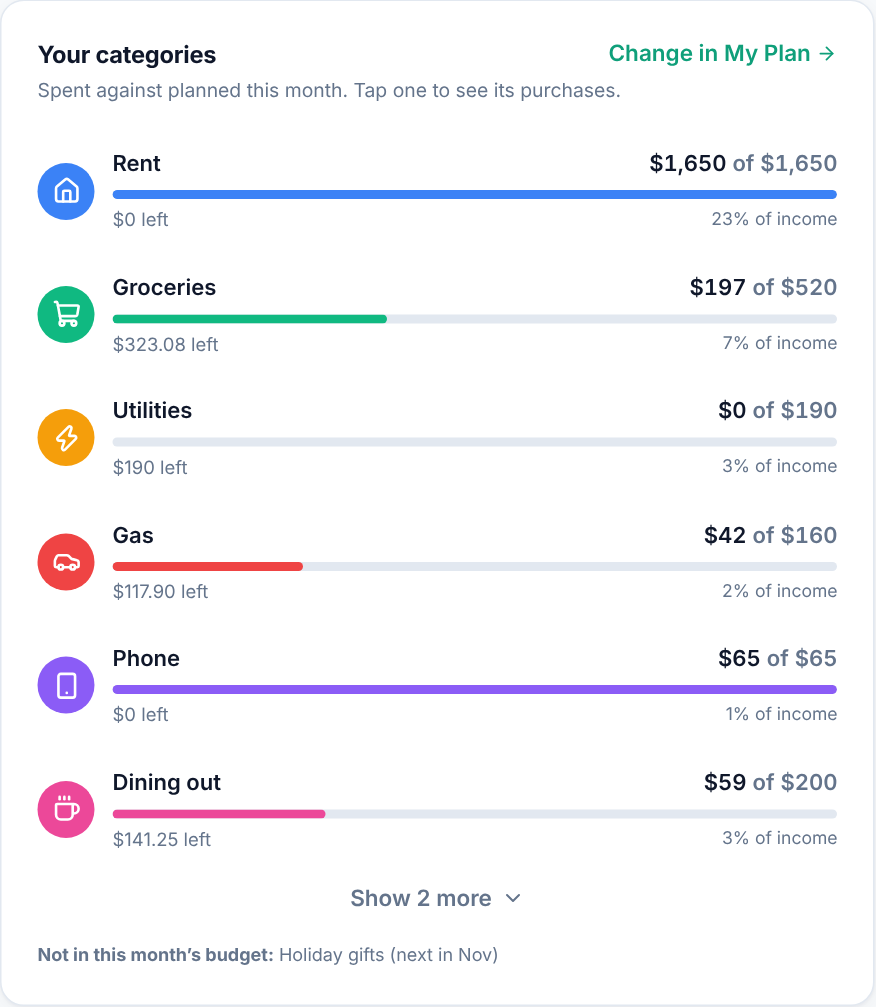
Categories you pay only in certain months (like holiday gifts) are listed under Not in this month’s budget, with the month they’re next due.
Savings and recent transactions
Home also shows each savings goal with what you’ve put in this month, and your latest transactions. See all opens the full lists.
On a phone
Home works the same way on a phone, with the main pages along the bottom.