Help center Troubleshooting
Questions and troubleshooting
Answers to common questions: missing emails, numbers that don’t match, extra paychecks, syncing and more.
I didn’t get the email to confirm my account
Check your spam or junk folder, and mark the email “Not spam” so the next ones arrive in your inbox. On the Check your email screen right after signing up, Resend email sends another. The link works for about an hour: if it has expired, choose Get started and sign up again with the same email to get a new one.
The email link opened a blank page
Open the link again. If it still doesn’t work, copy the link from the email into your browser’s address bar. If the link has expired, sign up again with the same email for a new one.
Why is this month’s planned spending different from My Plan?
My Plan spreads bills that aren’t monthly (like car insurance twice a year) across the year, so its monthly number is an average. Home shows the month you’re in: higher in a month a bill is due and lower in the others. Home’s This month card shows the month you’re in, and My Plan shows the average.
Why doesn’t my plan count my third paycheck?
If you’re paid every 2 weeks, two months a year have a third paycheck. Your plan counts a regular month of two paychecks, so it never depends on a lucky month. The third paycheck is extra money: save it or put it toward a savings goal. My Plan shows how much extra you’ll get this year. See Add your income.
What does “Money you have” mean?
It’s the income you’ve logged, minus what you’ve spent and moved to savings. It’s only as accurate as what you log, so log your paychecks when you’re paid.
What do the words in Ledgerly mean?
- Left to assign: income you haven’t planned for yet. Plan it for spending or savings until it’s $0, and every dollar has a job.
- Give every dollar a job: decide where all of your income goes (bills, spending, savings), so nothing is left unplanned.
- Check-in: a quick look at what needs attention this month: categories near their limit, bills due, goals behind.
- Cash flow: the money you’d have each day ahead, worked out from your paydays, bills and plan, with a warning before it runs low.
- What-if: a copy of your plan where you try a change, like a raise or a move, without touching the real one.
- Sinking fund: money set aside each month for a cost that doesn’t come monthly, like car registration or Christmas, with its own running balance.
- Transfer: money moved between your own accounts, like paying a credit card or putting money in savings. It changes both balances but isn’t spending or income.
- Extra income: money in that isn’t one of your planned paychecks (a gift, a side job). It’s logged without adding a new income source, and it’s more money to give a job.
Does Ledgerly connect to my bank?
Only if you link it, and never with your login. Ledgerly never asks for your bank login, card numbers or full account numbers (you can add an account’s last 4 digits to help match what your AI app shows). You log what you spend, which also helps you notice it. To catch up quickly, download your transactions from your bank’s website as Excel or CSV and import them.
With Premium, link your bank through Plaid (Settings → Link a bank), read-only. You sign in to your bank in Plaid’s window (never in Ledgerly), your balances stay current on their own, and new transactions wait on the Transactions page for you to check before anything is saved. Unlink any time in Settings.
Can I bring in a spreadsheet I already use?
Yes, free. Import an Excel workbook (.xlsx) or a CSV file of transactions or of your budget plan: choose Import a statement on the Transactions page (on a phone: the green +), or Settings → Backup and export → Import from a spreadsheet. It doesn’t need a set layout. See Import from a spreadsheet.
My spreadsheet didn’t import the way I expected
- Check Headings are in: pick the row that has your column names (or none).
- Check the column choices under it, and whether the sheet holds Transactions or My budget plan.
- If spending shows as money in, tick Spending shows as positive amounts.
- In the list, untick rows you don’t want, or change a row’s type or category.
- Still not right? Choose Let AI read this layout (you need to be signed in).
- An older .xls file, or a Google Sheets or Numbers file: save or export it as .xlsx or CSV first.
What does “Let AI read this layout” send?
Only the first 25 rows of the sheet you’re importing, and only after you choose Yes, use AI. Nothing else from your budget is sent, Ledgerly doesn’t store the rows, and they go only to AI providers that don’t keep or train on them. You can use it up to 30 times a day, within a yearly allowance that starts again on January 1.
Are my changes saved on my other devices?
With an account, yes: changes are saved online right away and show on your other devices when you open Ledgerly. If you’re offline, they’re kept on the device and saved as soon as you’re back online. Without an account, your budget is only on the device you made it on.
Can I use Ledgerly with my partner?
Yes, two ways:
- Each with your own account (Premium): invite them under Settings → Share with someone. They sign in with their own email and can log spending, money in and savings in your budgets; only you change the plan. See Share with someone.
- One shared account: sign in to the same account on both phones, and you’ll both see and change everything.
How do I move my budget to a new phone?
With an account, just sign in on the new phone. Without one, download a backup on the old phone and restore it on the new one, or make an account first: it starts with the budget on that device.
How do I suggest a feature?
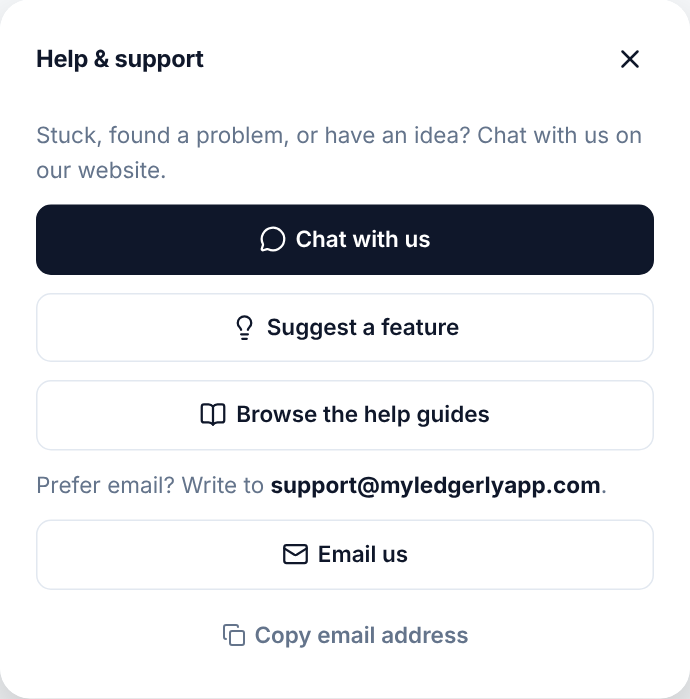
In the app, open Help & Support from the menu and choose Suggest a feature. It opens the chat on the Ledgerly website. Tell me what you’d like and why: I read every idea, and the most asked for come first.
Something else?
Choose Chat with me in the corner of the Ledgerly website, or Help & Support → Chat with me in the app, which opens it. You can also email [email protected]. I’ll get back to you in the chat, or by email if you leave your address.