
Help center Plan your money
Spending categories
Add categories for your spending, plan bills that aren’t monthly, split a category into items and change amounts.
Categories are the buckets your spending is split into: rent, groceries, gas, fun. Each one has a planned amount per month, and Ledgerly compares what you spend against it.
Add a category
- Open My Plan.
- Choose Add, then Category.
- Enter a name and how much you plan to spend in a month.
- Choose Save category.

Ledgerly picks an icon and color from the name. To change them, choose Change icon or color.
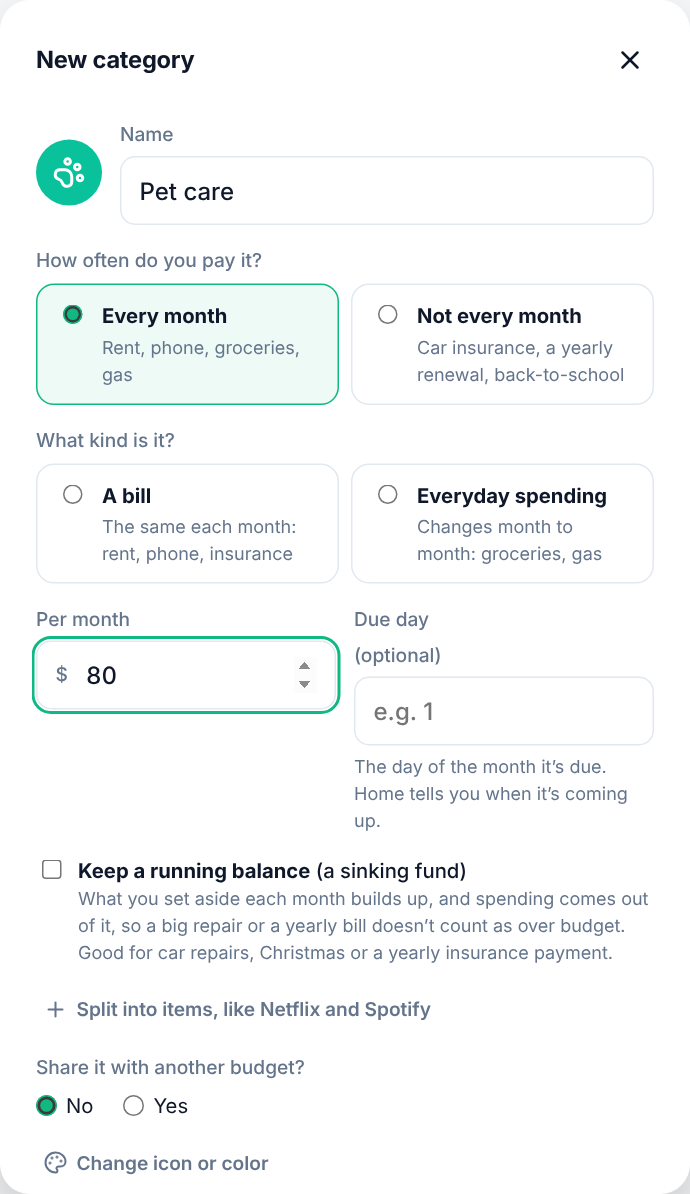
Bills and everyday spending
Something you pay every month is either a bill, the same each month (rent, phone, insurance, tithe), or everyday spending that changes month to month (groceries, gas, eating out). Choose which when you add or edit the category; if you don’t, Ledgerly works it out from the name.
A bill can have a due day, like the 1st for rent. Ledgerly then shows it under Bills in My Plan, tells you on Home when it’s due in the next week and not paid yet, and, with reminders on in the phone app, reminds you the day before.
Bills that aren’t every month
For something you pay a few times a year, like car insurance or a yearly subscription, choose Not every month. Then choose how it fits in your budget:
- Spread it out sets a little aside every month, so the money is there when the bill is due. Enter the amount of each payment, how often it’s due (every 3 months, every 6 months or once a year) and the month it’s next due. Ledgerly works out the monthly amount.
- Only in the months I pay it budgets the full amount in those months and nothing in the others, like holiday gifts in November and December.
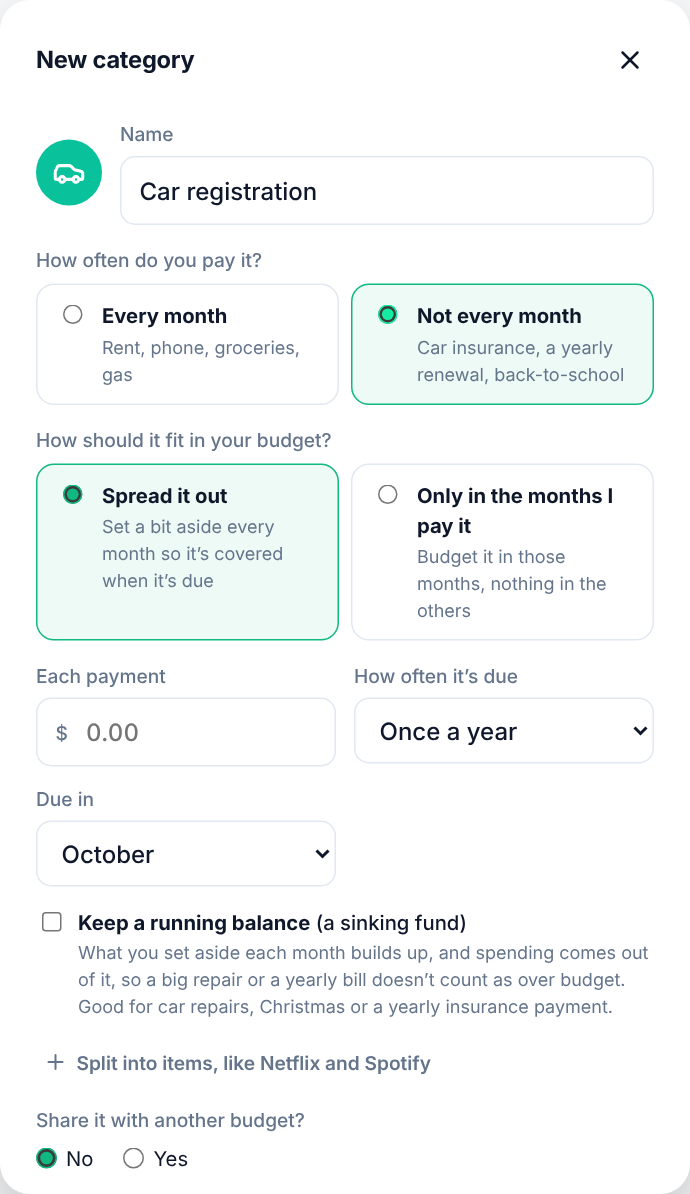
Keep a running balance (sinking funds)
For costs that come once a year or now and then, like car registration, Christmas or car repairs, tick Keep a running balance when you add or edit the category (everyday spending, or a bill you spread out). What you set aside each month builds up from that month on, and spending comes out of it, so a $400 repair from a fund holding $600 isn’t counted as over budget. Enter anything you’d already saved for it.
Your categories show what’s in the fund. For a bill you spread out, the check-in says when the fund won’t cover the next payment, and what a month would cover it.
Split a category into items
Some categories are really a few things, like Subscriptions (Netflix, Spotify and iCloud). Choose Split into items, like Netflix and Spotify, then Add item for each one. Each item has its own amount and schedule, and the category’s budget is their total. When you log a purchase in that category, you can pick the item.
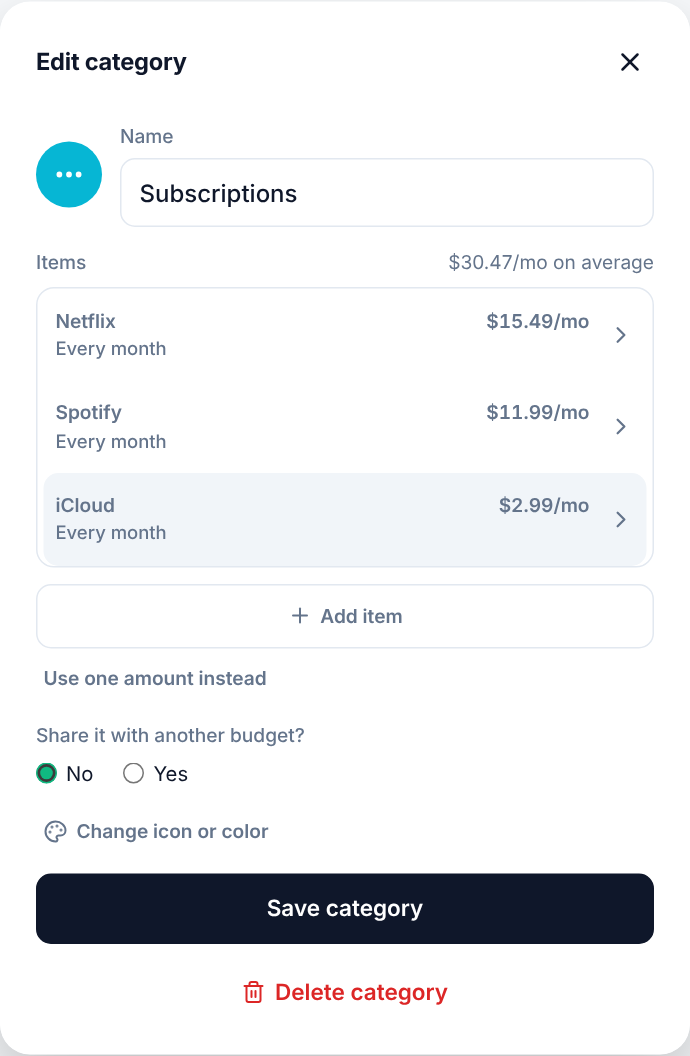
Choose Use one amount instead to go back to a single amount.
Change an amount
In My Plan, select any category to change it. You can enter the amount per month, per year or as a percent of your take-home pay: they’re linked, so changing one updates the others. Ledgerly shows what’s left to assign after the change before you save.
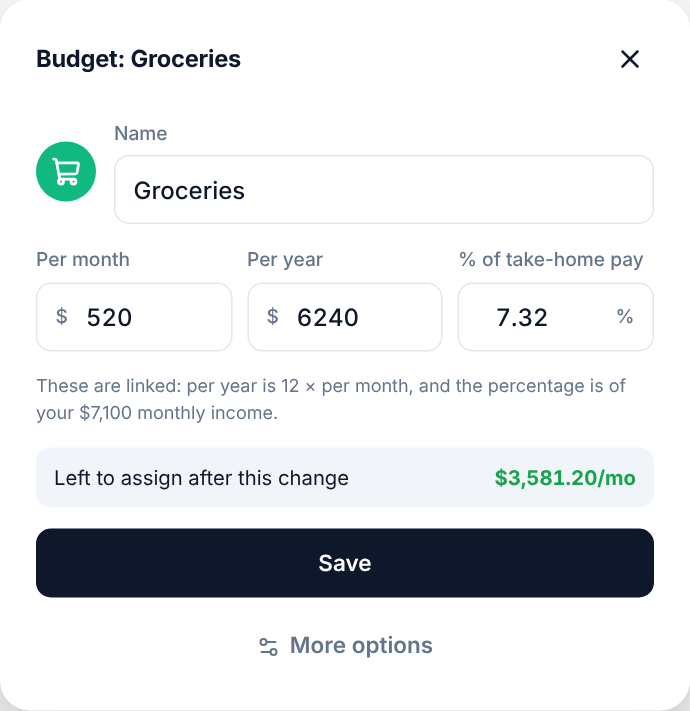
More options opens the full category: its schedule, items, icon, color, sharing and Delete category.
Share a category with another budget
If you have more than one budget, a category can also count as income in one other budget. This is for paying yourself from a business budget: the Owner pay category is spending in the business and income at home. See Budgets and shared categories.
Deleting a category
Deleting a category also deletes the expenses logged to it. If you want to keep your history, rename or change it instead.